Studio Web Operation Manual
Start with Center and edge deployment for the complete illustrated installation, collection, deployment, synchronization and maintenance workflow.
Use Site management for field enrollment and gateway access. A ten-minute, single-use enrollment code configures the two management tunnels from Watchdog without transferring a management package. Certificate creation, rebuild, import and export are available under Tunnel → Certificate maintenance; see Management certificates. TLS remains optional.
Studio Web is used for project management, local operation validation, intranet tunneling broker configuration, and Watchdog connection management. For daily use, first maintain local projects in Studio, then start local runtime, upload to Watchdog, or send projects back from the field gateway as needed.
Login
Open http://<server-ip>:5100 and sign in with your Studio username and password. The bundled configuration officially supports standard HTTP access by IP address; it does not require changing the address to localhost or using a browser secure context.
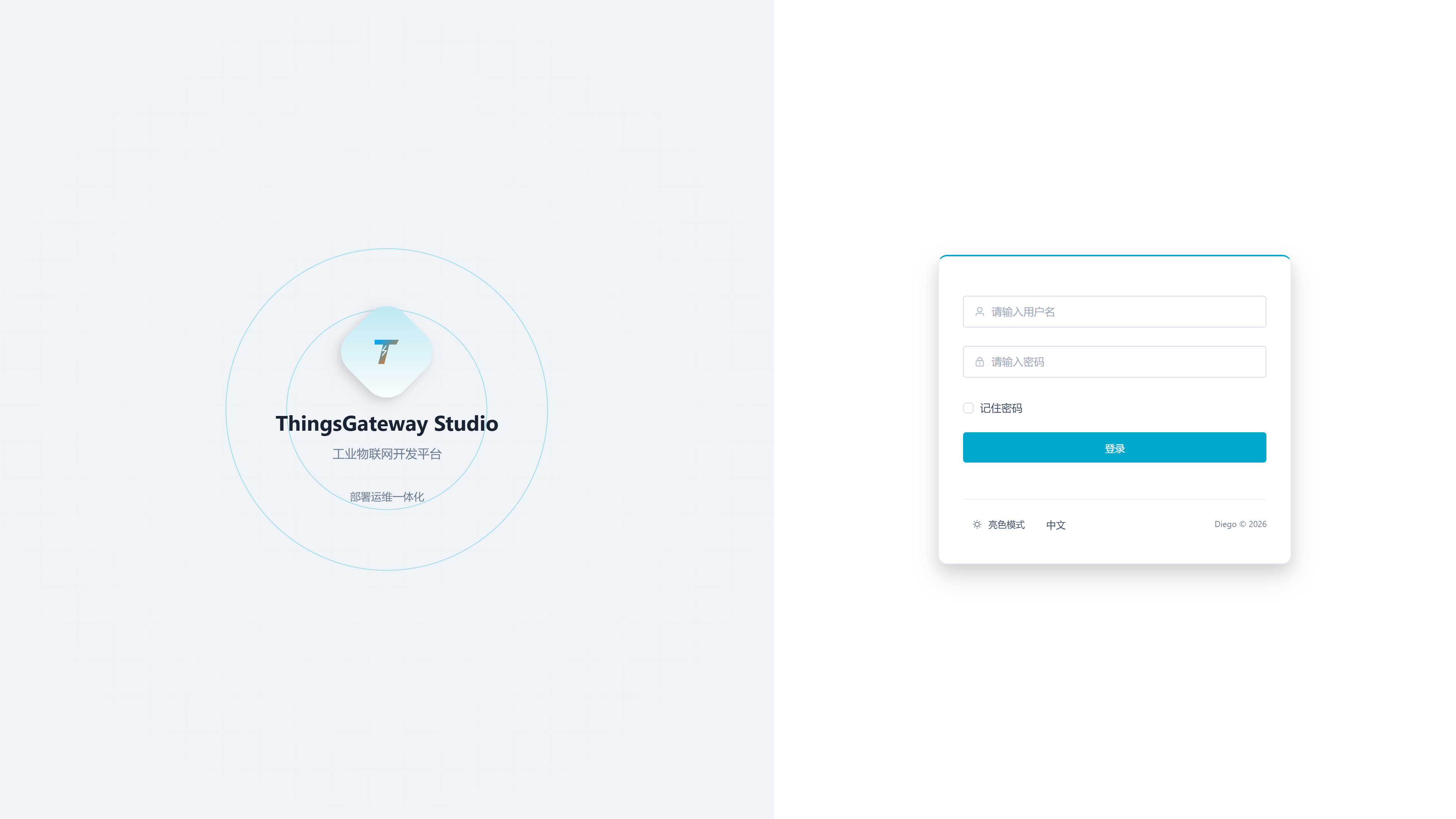
| Configuration Items | Description |
|---|---|
| Username | The default account is admin. |
| Password | The default password is 111111. |
| Remember the password | After checking, save the login form information in the current browser. |
When submitting login, the page automatically retrieves a two-minute, one-time public key challenge and uses the RSA-OAEP-SHA256 encrypted password. After successful login, Studio uses JWT Bearer to access subsequent business interfaces. Users do not need to manually obtain public keys or fill in tokens.
one-time public key challenge only additionally protects login or initialization passwords. Bearer tokens, password change requests, engineering packages, and other management data under regular HTTP still lack TLS protection; HTTPS is prioritized on public or untrusted networks.
Overview
Log in and enter the "Overview" page. The overview is used to view current operating projects, tunnel services, Watchdog online status, gateway versions, and recent projects.
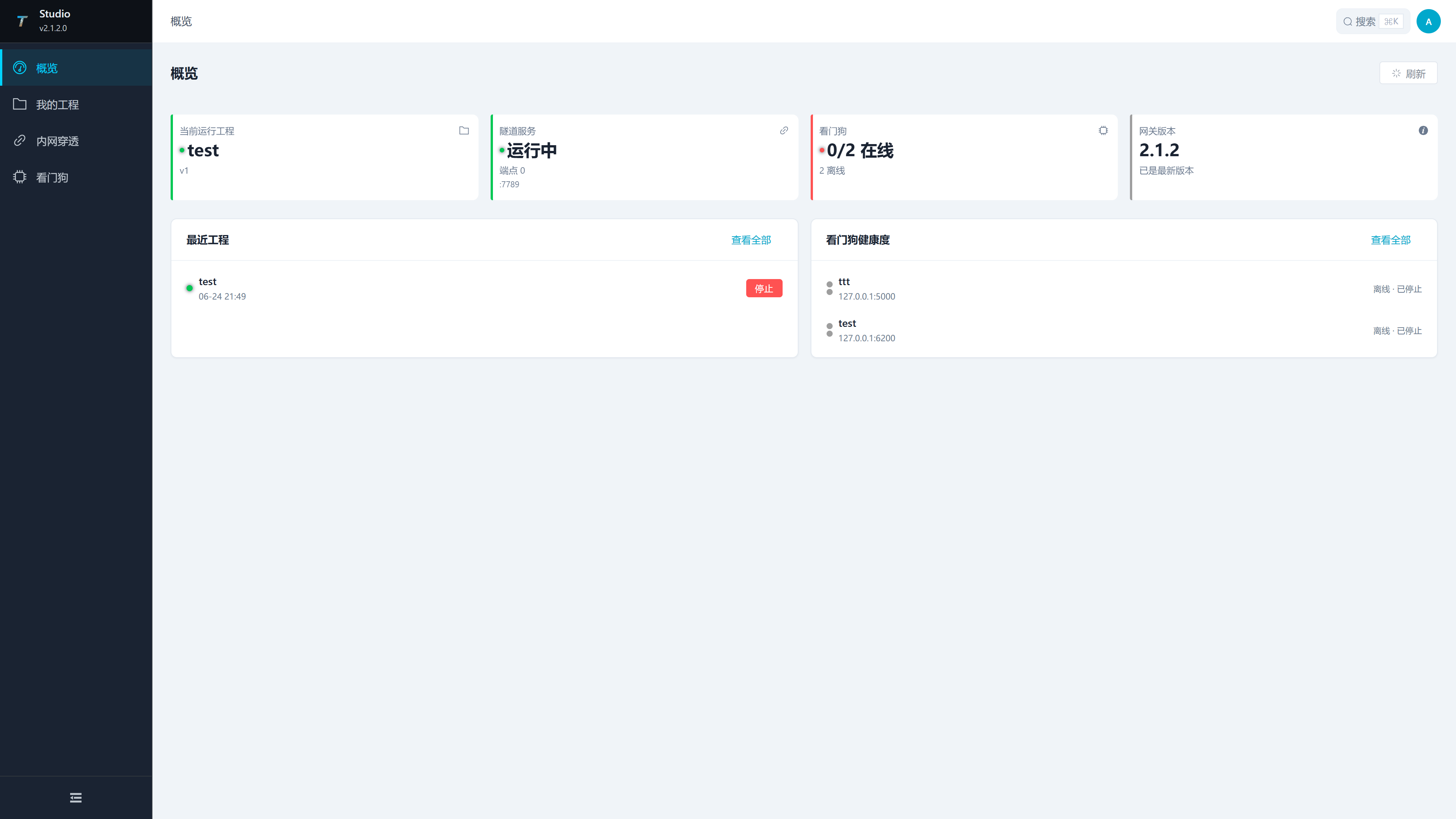
| Area | Description |
|---|---|
| Currently Running Project | Displays the name and version of the currently running project. |
| Tunnel Service | displays the operating status, number of endpoints, and ports of the Studio Broker. |
| Watchdog | displays online statistics for configured Watchdogs. |
| Gateway Version | Displays the current runtime version and version status of the gateway. |
| Recent Projects | Displays recently maintained projects and supports quick entry or stop. |
| Watchdog Health | Displays each Watchdog address, online status, and gateway status. |
My Project
Menu Path: My Project.
This page is used to manage local projects and perform operations such as creating, importing, running, stopping, exporting, uploading to Watchdog, and downloading from gateways.
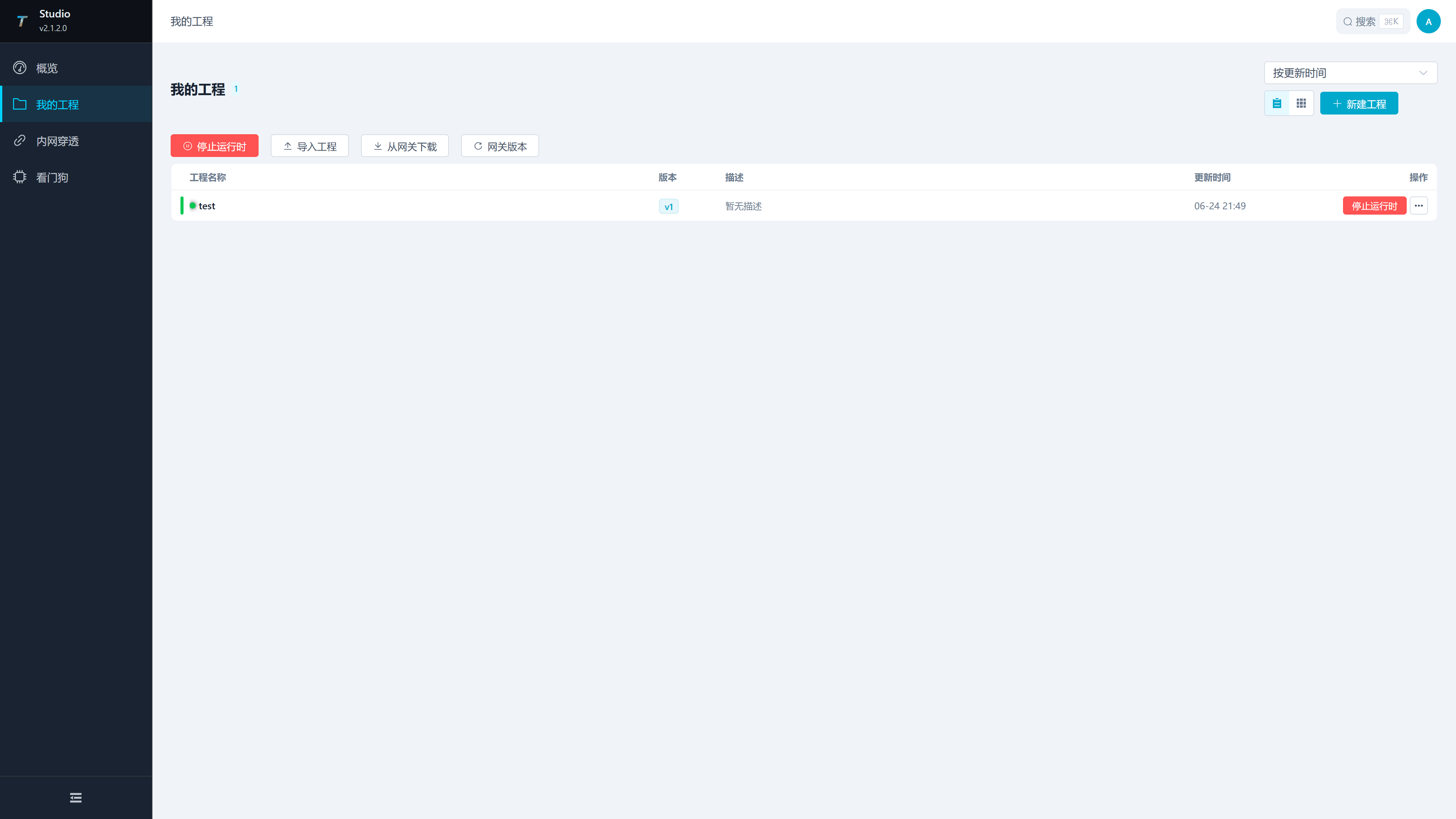
| Area or Operation | Description |
|---|---|
| Project List | Displays project name, version, description, update time, and operation entry points. |
| Create new projects | Create new local projects. |
| Import the project | Import the ZIP project package. |
| Download from the gateway | Download the project from the configured Watchdog/gateway. |
| Gateway Version | View the currently available runtime version of the gateway. |
| Stop the runtime | Stop the local runtime that Studio is starting up. |
| More Operations | Perform editing, exporting, uploading, and deletion on individual projects. |
Project Lifecycle
| Stages | Operations in Studio | Instructions |
|---|---|---|
| Create | Create a new project or import a ZIP project package | It is recommended to first confirm the project name, site object, and version description to facilitate subsequent uploads and backup identification. |
| Local Maintenance | Enter Projects and Edit Configuration | Studio maintains local project content and does not automatically overwrite projects on Watchdog before uploading. |
| Local Validation | When running or stopping the project, | is used to verify project configurations in Studio. The runtime status can be viewed in the overview and on the My Projects page. |
| Publish | Upload the project to Watchdog | Select the target gateway, publishing method, target environment, and runtime build options. |
| Reclaim | Download projects from gateways | Pull project packages back from Watchdog-managed gateways, suitable for on-site configuration for backhaul or fault recovery. |
Create or Edit a Project
Click "New Project" to open the project drawer. Reuse the same drawer during editing projects.
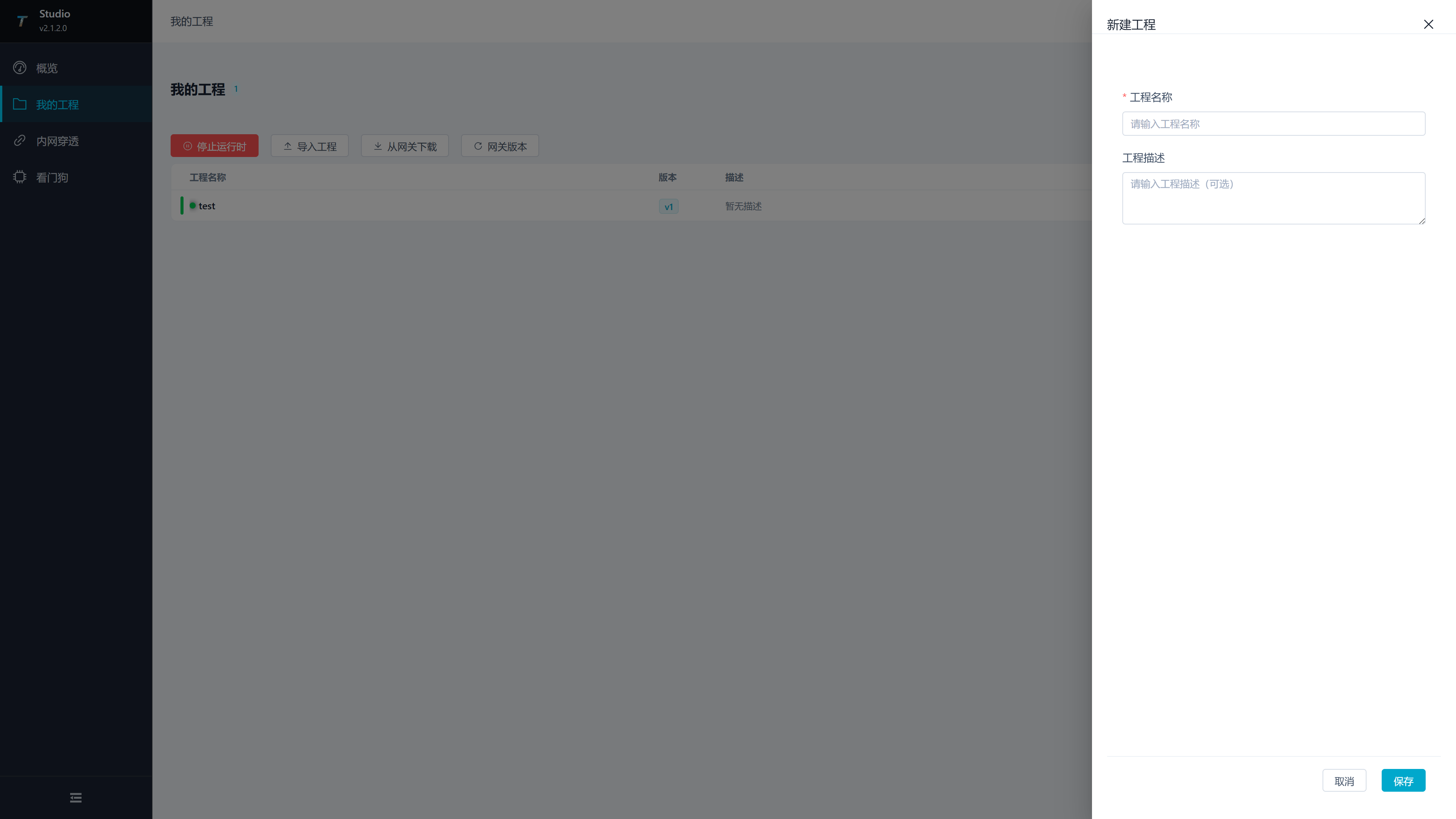
| Configuration Item | Description |
|---|---|
| Project Name | Project Display Name. |
| Project Description | Description of the project's purpose, on-site objects, or versions. |
Import Project
Click "Import Project" to open the import popup. The pop-up supports dragging or clicking to select the ZIP project package.
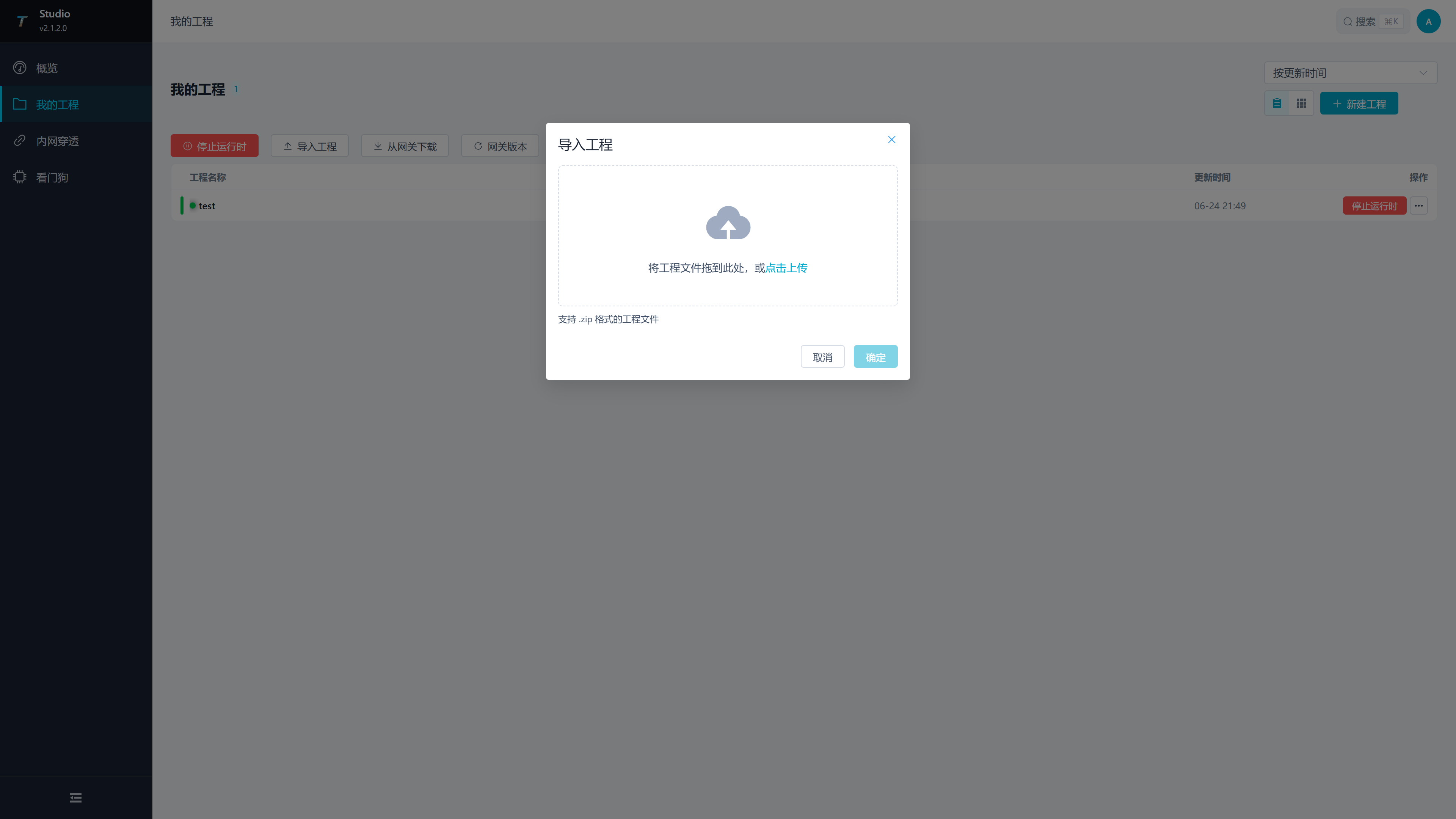
| Configuration Items | Description |
|---|---|
| Project Package | The ZIP Project Package to be imported. |
| Import Project Name | Optional. After filling it out, import using the name; If not filled in, use the original name of the project package. |
Download the project from the gateway
Click "Download from the gateway" to open the download drawer. This feature is used to pull packages from gateways managed by Watchdog into Studio.
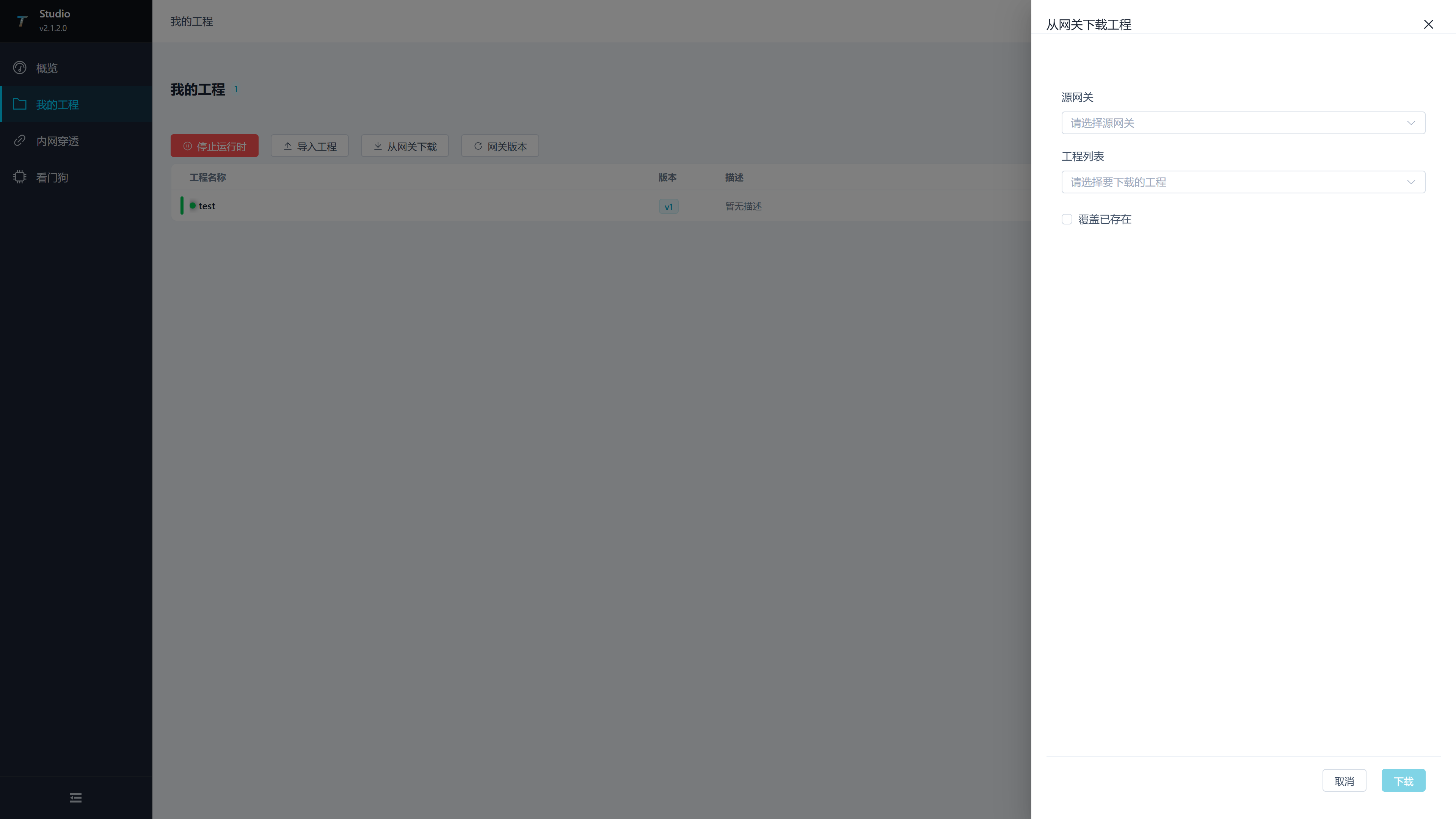
| configuration items | Description |
|---|---|
| Source gateway | Select the configured Watchdog service. |
| Project List | Select the target package on Watchdog. |
| Overwrite existing projects | After checking, if there are projects with the same name locally, overwrite and import them. |
Upload Project to Gateway
Select "Upload" in the project card or table operation to open the upload drawer.
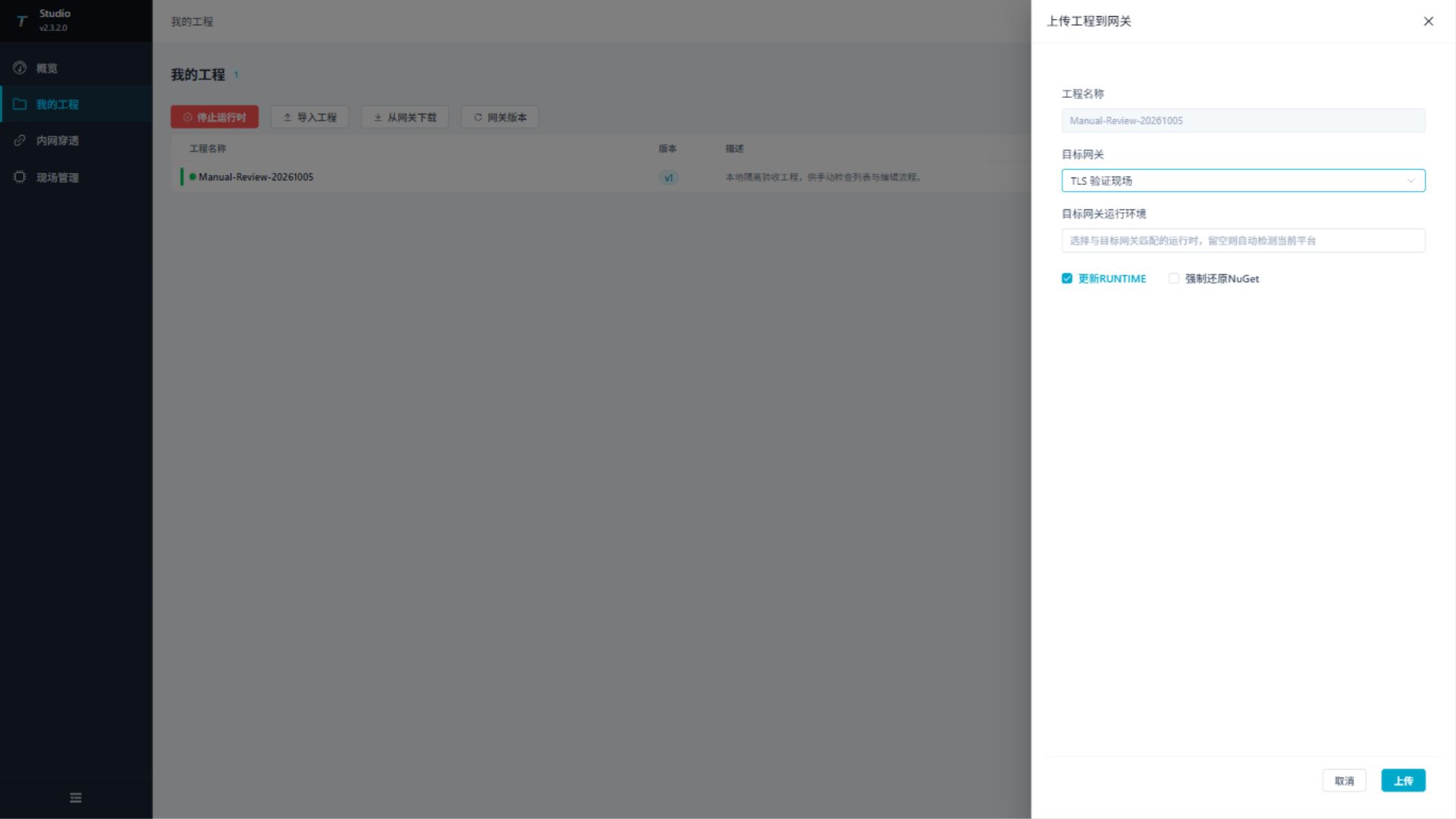
| Configuration Items | Description |
|---|---|
| Project Name | Current project to be uploaded, read-only display. |
| Target Gateway | select the configured Watchdog service. |
| Target Gateway runtime | Enter the target OS/CPU runtime identifier, such as win-x64, linux-x64 or linux-arm64. An incorrect value can cause publishing or startup failure. |
| Update RUNTIME | After checking, the uploaded package will carry and update the target TGateway program file. For production environments, it is recommended to arrange a maintenance window before selecting the option. |
| Forced restoration of NuGet | Forced re-restoration of dependencies upon release. Dependency package exceptions, cache build exceptions, or switching target environments before use; Publishing failures may occur when the network cannot access the NuGet source. |
Pre-release check:
- The target site has been configured and successfully tested in Site management.
- Confirm that the target environment matches the gateway operating system and CPU architecture.
- Checking "Update RUNTIME" updates the target runtime program files. Before execution, confirm that the target gateway has a rollback project or backup.
- Checking "Force restore NuGet" restores dependencies; when publishing fails, check the NuGet source, network, and target environment identifier.
Intranet Tunneling
Menu Path: Intranet Tunneling.
Studio intranet tunneling page is used to configure the tunnel broker. After the Watchdog tunnel client connects to the broker, it can expose the internal network TGateway service to a specified address.
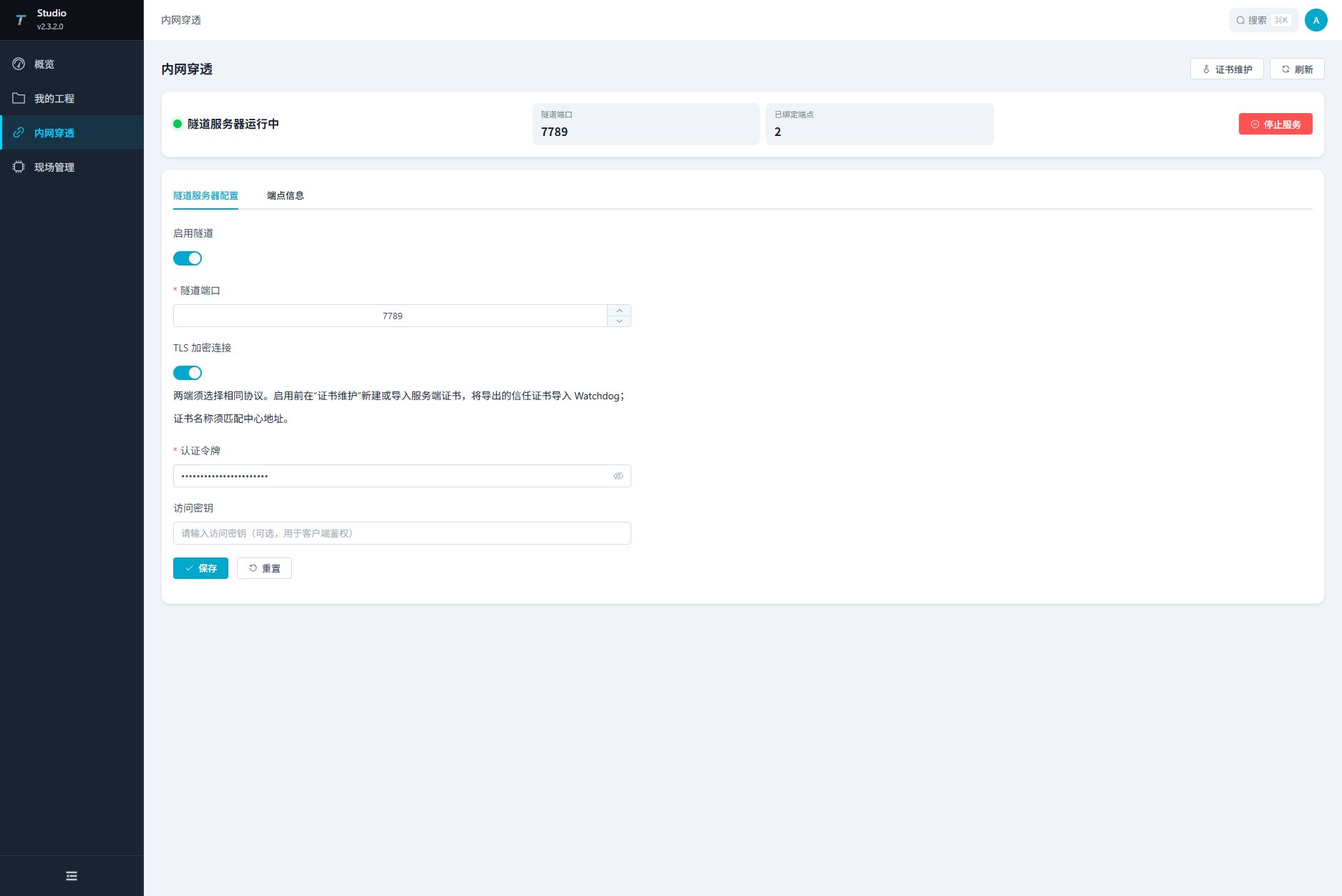
| Configuration Items | Description |
|---|---|
| Enable Tunnel | Control whether the Studio Broker is enabled. |
| Tunnel Port | Watchdog Tunnel Client connects to Studio Broker's port, ranging from 1 to 65535. The default value on the page is 7789; This port needs to be allowed to be allowed in the firewall of the server where Studio is located. |
| Authentication Token | the first authentication value used by the Watchdog client when connecting to the Broker. The default value for the page is Dmtp; This is a mandatory field; Studio and Watchdog must be completely identical. |
| Access Key | The access key used by the Watchdog client to bind the tunnel. Fill in when a second verification is needed; When not in use, both Studio and Watchdog are left empty. |
| Start the service | Start the broker according to the current configuration. |
| Stop service | Stop a running broker. |
| Save Configuration | Save Broker configuration in the form. |
| Endpoint Information | View bound client tunnel endpoints, including tunnel labels, tunnel IDs, modes, external addresses, and binding time. |
First, save and start the Broker in Studio, then configure the client in Watchdog Web's "Tunnel Management." The authentication tokens must be exactly the same; If Studio entered the access key, Watchdog must also enter the same access key; When not using secondary verification, both ends are left empty.
Tunnel Joint Debugging Sequence:
- Enter the tunnel port and authentication token on the Studio side; If a second verification is needed, enter the access key and click "Save Configuration".
- Click "Start Service" to confirm that the broker status has changed to running.
- Add a client in Watchdog Web's "Tunnel Management" and enter the Studio Broker address, port, and authentication token; When Studio uses access keys, the same value is entered here.
- Fill in the source and external addresses in the Watchdog client, save them, and activate the client.
- After successfully connecting, the Watchdog client returns to Studio to view endpoint information.
- Use the external endpoint address to access the target TGateway service, and confirm that the access address, port, and firewall policies are correct.
Watchdog
Menu path: Watchdog.
This page manages Watchdog service connections saved in Studio. After configuration, you can test connections, view status, upload projects, and manage backup of the target gateway.
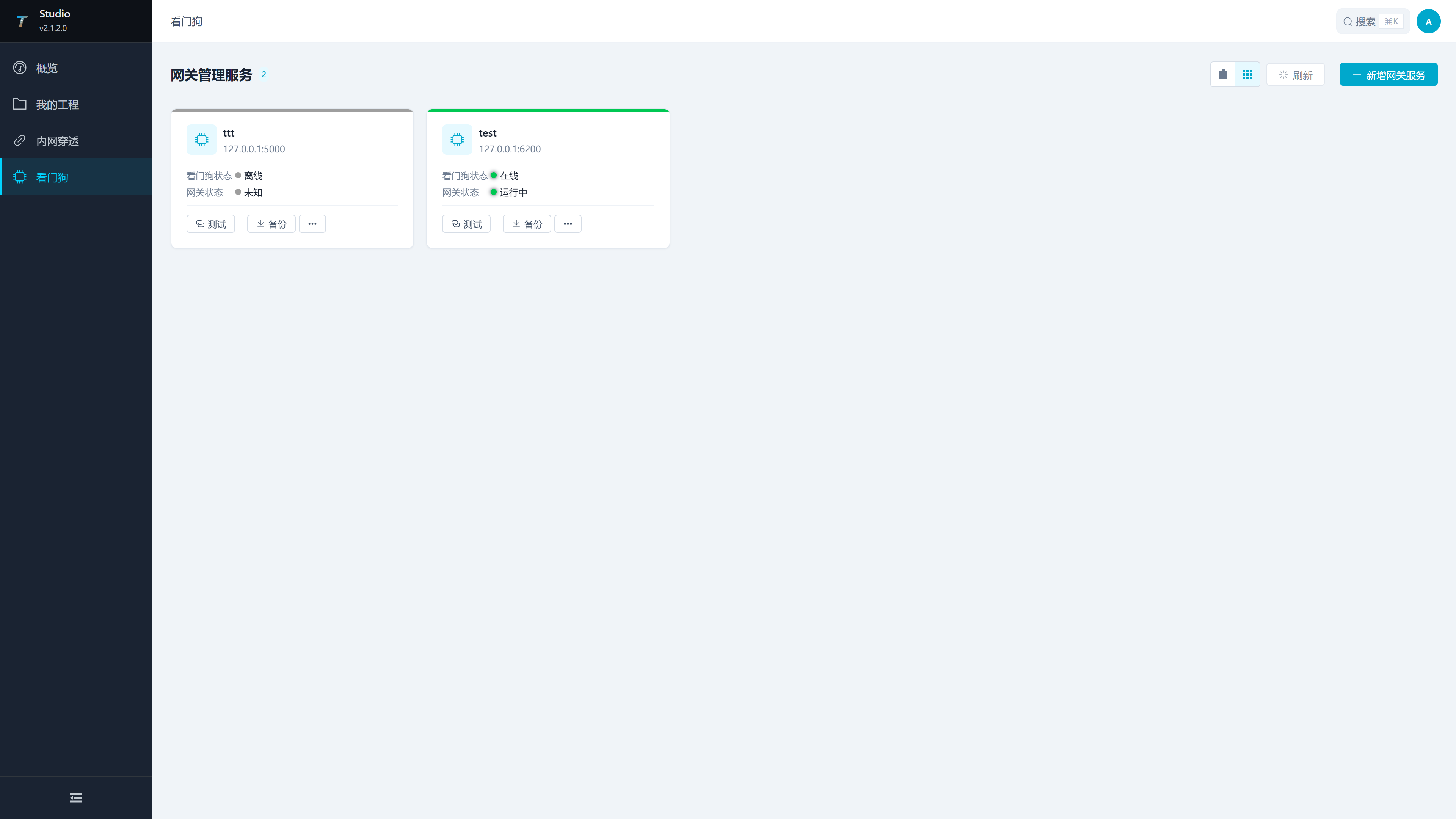
Add Gateway Service
Click "Add Gateway Service" to open the configuration drawer.
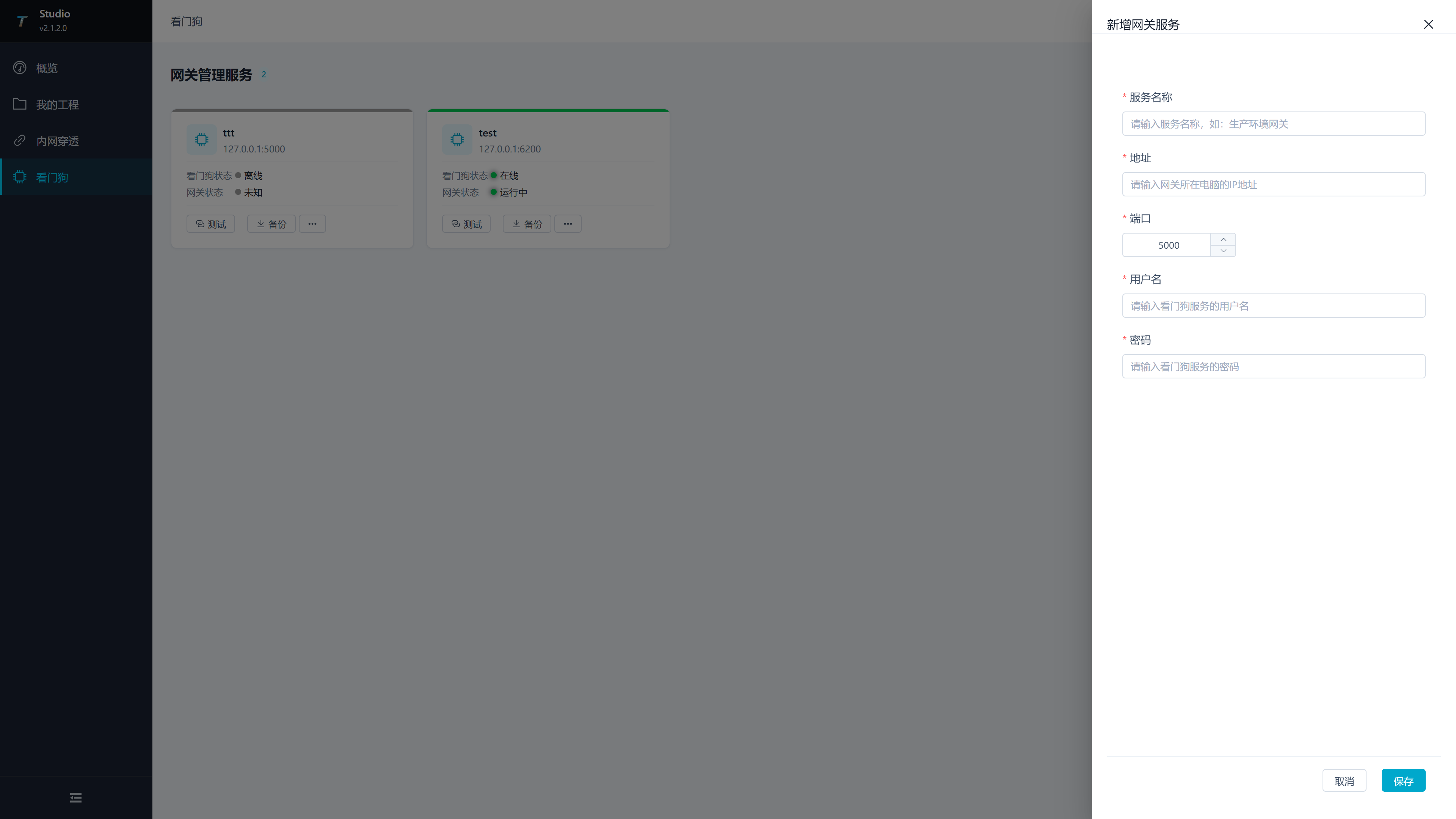
| Configuration Items | Description |
|---|---|
| Service Name | The display name of the Watchdog service in Studio. |
| Service Address | the IP or domain name of the Watchdog service; enter the port in the "Service Port" field. |
| Service Ports | the ports used by Studio to access Watchdog Web/API, ranging from 1 to 65535. Bundled Watchdog commonly used 6200; If the Watchdog port has been modified on site, fill in the actual port. Enter the Watchdog port here, do not enter the TGateway Web/API port, and do not repeatedly enter the port in the service address. |
| Username | Log in to your Watchdog account. |
| Password | Watchdog login password. |
After adding new features, it is recommended to immediately run connection tests. A successful connection only indicates that Studio can access the Watchdog service; For project uploads and backup restoration, the target Watchdog must have normal runtime services.
Service addresses can be filled with device IP addresses and connected via regular HTTP, for example, the address should be 192.168.1.20, and the port should be 6200. Studio automatically logs in using Watchdog's one-time password challenge, then queries status, uploads or downloads projects, and manages backups via Bearer sessions, without requiring Basic authentication configuration.
Backup Management
Click "Backup" in the Watchdog card to open the backup drawer.
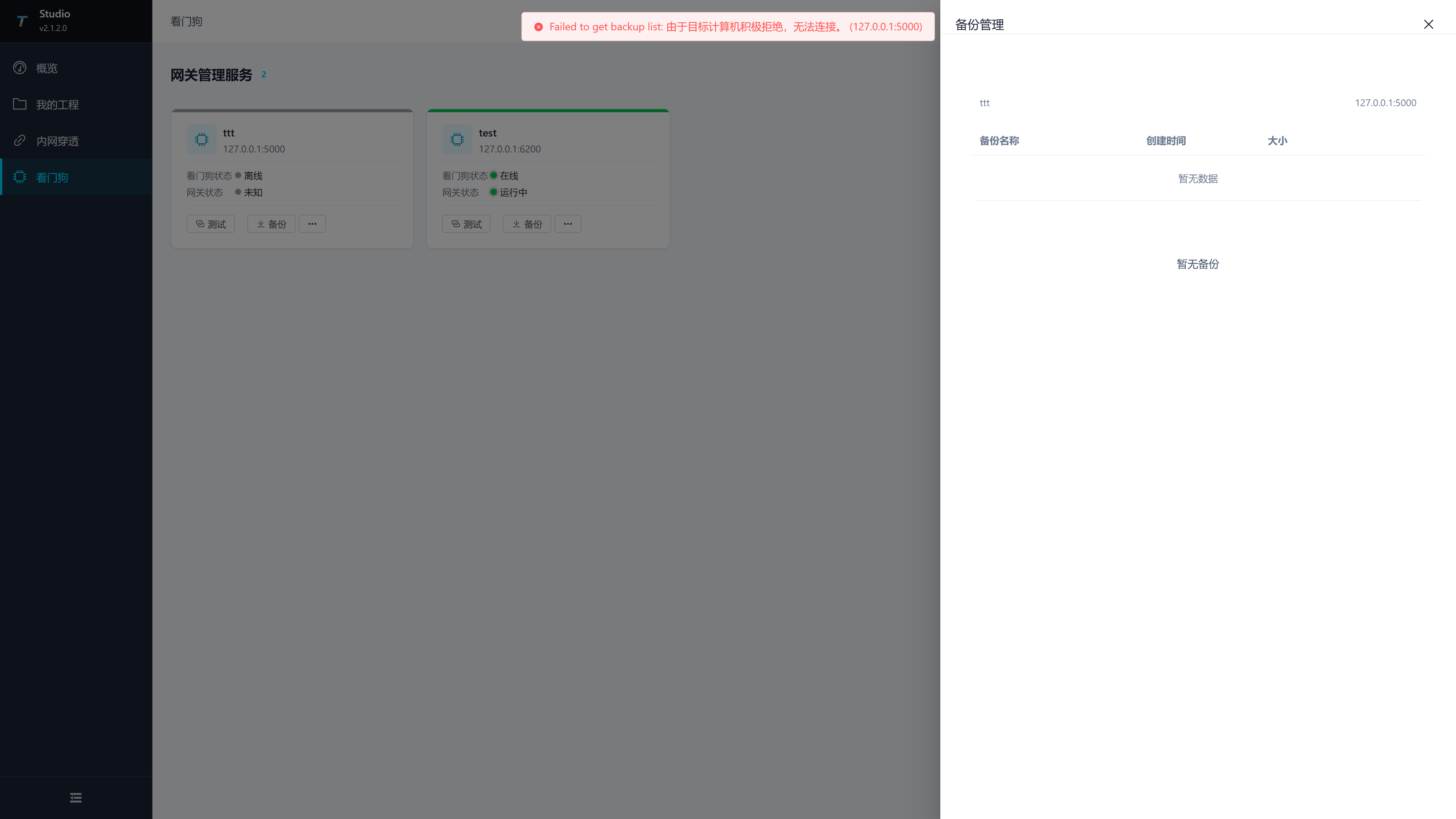
| Columns or Operation | Instructions |
|---|---|
| Name | Name of the backup file. |
| Creation time | Back up creation time. |
| Size | Backup file size. |
| Restore | restore the backup to the current item. |
| Delete | Delete the backup. |
Restoring backup will change the contents of the target gateway project. Before execution, confirm that the current project is saved and create a new backup if needed.
Recommended Operation Process
- Log in to Studio.
- Add sites and test connections in Site management.
- Create or import a project on the "My Projects" page.
- If you need public or cross-network access, save and start the broker in "Intranet Tunneling" first.
- Upload projects to the target Watchdog in "My Projects."
- After uploading, check the gateway's operating status in Watchdog Web's "Project Management" or "Dashboard."
Frequently Asked Questions
| Phenomena | Handling Suggestions |
|---|---|
| Unable to log in Studio | Check whether Studio services are running, whether port 5100 is accessible, and whether the account and password are correct. |
localhost is normal but IP cannot access | Check if Studio is listening 0.0.0.0:5100, remote management, and normal HTTP switches are enabled, and allow the firewall port. |
Page prompt importKey Error | Clear browser and proxy cache and republish the complete frontend static resources; The current page does not rely on subtle.importKey; the dynamic resources required for login must be loaded properly. |
| Prompt login challenge invalid | Resubmit login to obtain a new challenge; The challenge expires in two minutes and can only be used once. |
| Watchdog displays offline | Check Watchdog address, port, firewall, account password, and target service status. |
| Project upload failure | Check the Watchdog connection, project package and target runtime identifier. |
| Gateway cannot start after publishing | Check the target OS/CPU, GatewayApp completeness and Watchdog startup logs. |
| Tunnel cannot bind | Confirm that Studio Broker is running, and the authentication token of the Watchdog client matches Studio configuration; When entering the access key on the Studio side, check again whether the Watchdog access keys are exactly the same. |