Studio Site Management
The Site management page maintains Watchdog connections, gateway access, runtime status and backup operations. Management connectivity and business data synchronization are configured and verified separately.
For the illustrated installation, enrollment, deployment and data workflow, follow Center and edge deployment.
Enroll a site
- Add a site and choose Edge connects to center. Enter the reachable center hostname, local Watchdog and Gateway ports, and Watchdog credentials.
- Save and select Generate enrollment code from the site's operation menu.
- Open Watchdog → Tunnel management → Connect to center. Enter the center HTTP/HTTPS URL and code.
- Verify that both management tunnels are connected and bound, then test the site and open its gateway UI from Studio.
The code expires after ten minutes and can be used once. Regenerating it, editing or deleting the site, or restarting Studio revokes an unused code. No management package needs to be transferred. LAN deployments can use direct connections. TLS is optional; see Management certificates for private-CA trust and renewal.
Data synchronization connects to both Gateways and deploys their configuration directly. Enter the center Gateway management URL, separate Gateway credentials, and the center data host and port. Choose GatewayMqtt or SyncBridge. TLS is optional and off by default. Select Connect both Gateways, choose an enabled forwarding group at the edge, then select Configure and enable. The group's existing variable scope and trigger are retained. For GatewayMqtt, the first snapshot is followed by applying the center variable plan. If no group exists, create one in the edge Gateway and reconnect.
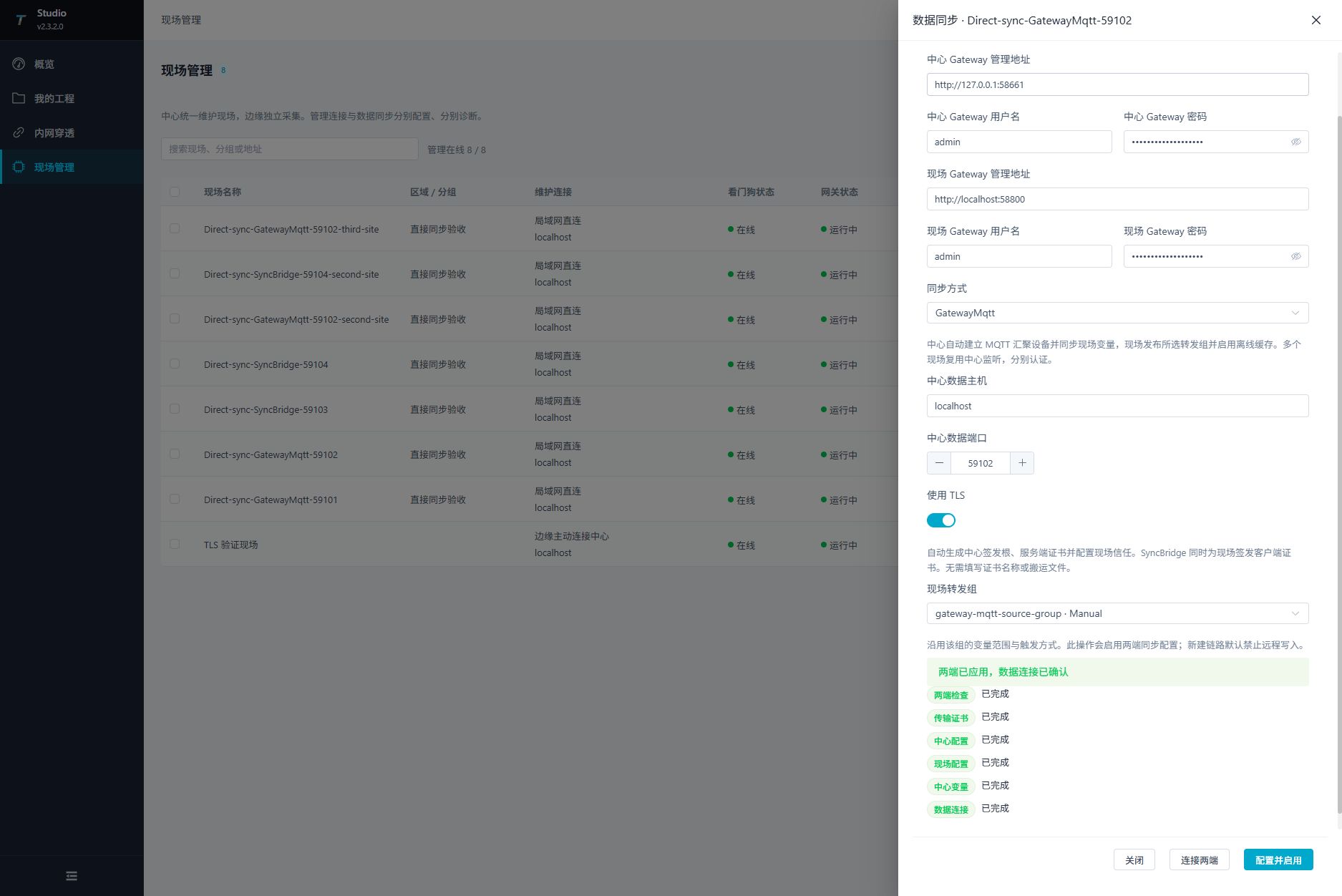
When TLS is enabled, Studio generates the data CA and server certificate at the center and installs the public CA at the edge. SyncBridge also receives its own client certificate for mutual TLS. The CA signing key remains at the center. Certificates with conflicting names, invalid purposes, or expired validity are rejected rather than silently overwritten. Management HTTPS trust is maintained separately through Studio certificate maintenance.
Automatically issued private certificates do not publish online revocation information. The deployment disables that lookup for SyncBridge while retaining chain, validity, hostname and peer identity verification.
GatewayMqtt deploys a GatewayMqttCollectServer at the center and a MqttClientProducer at the edge. Sites sharing a center address and data port share the listener; existing sources and credentials are preserved. External-Broker deployments continue to use GatewayMqttCollectClient in the original Gateway editor. SyncBridge deploys a HubServer and EdgePublisher. New links have remote writes / RPC disabled.
The result distinguishes saved configuration from a confirmed data connection. Confirmation requires a completed first MQTT snapshot and center variable plan, or a connected SyncBridge peer with an applied configuration revision. MQTT conflicts and data type changes stop automatic application for review in the collector debug page. Completed stages are retained on failure; repair the reported issue and retry without creating duplicate objects. Passwords are cleared when the panel or page closes. Live synchronization does not provide complete historical backfill.
Page entry
Menu path: Studio Web > Site management.
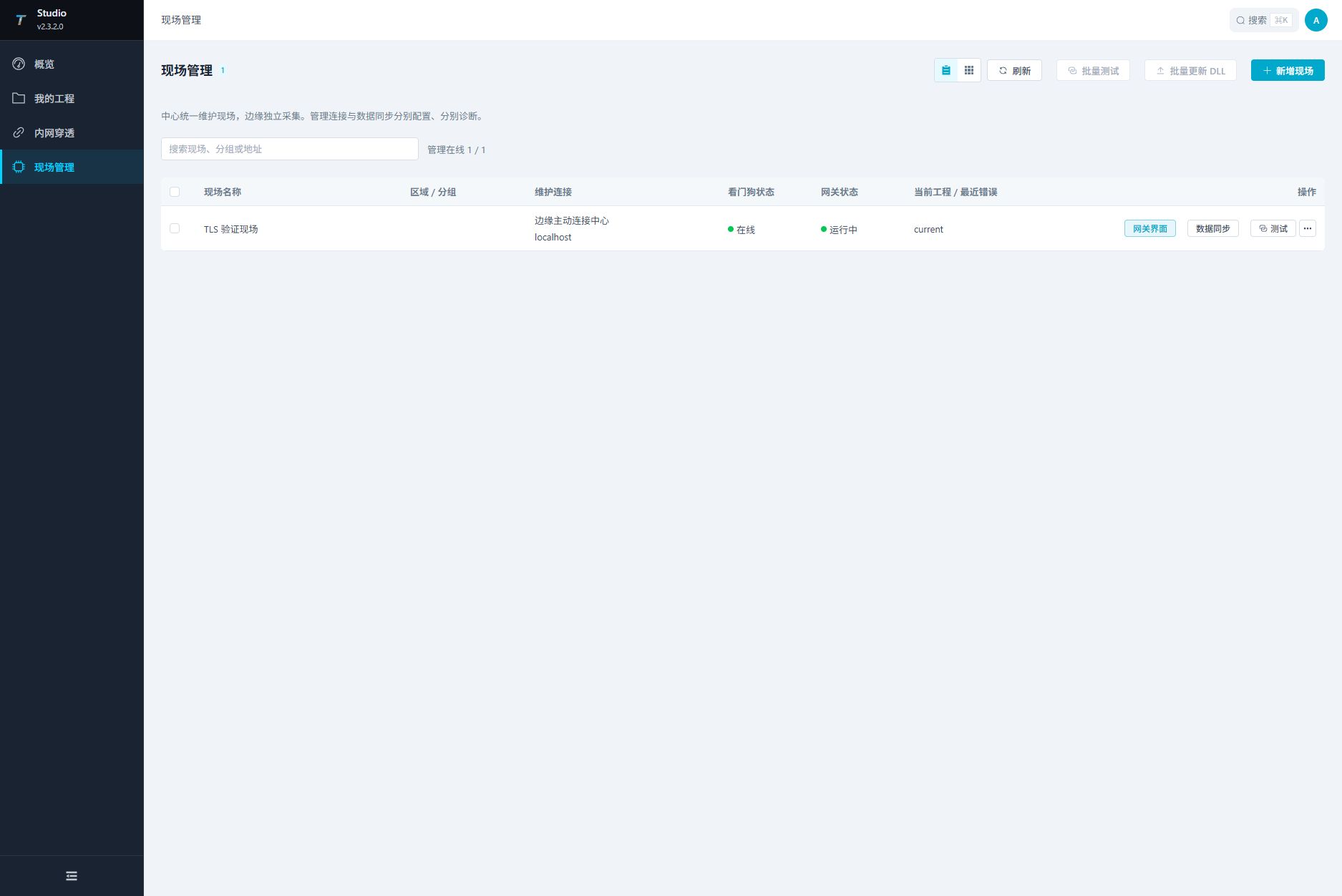
| Area or Actions | Instructions |
|---|---|
| Add site | Open the site configuration drawer. |
| Card View | Displays service name, address, Watchdog status, and TGateway status. |
| List View | Displays Watchdog services in a tabular format, suitable for multi-gateway management. |
| Test | Immediately test the connection from Studio to Watchdog. |
| Backup | Open the backup drawer of the target Watchdog. |
| Edit | Change the service name, address, port, username, and password. |
| Delete | Delete the Watchdog connection configuration saved in Studio without deleting items or backups on the target gateway. |
Meaning of Status
| Status | Explanation | Handling Suggestions |
|---|---|---|
| Watchdog Online | Studio can access the Watchdog API and read states. | You can continue uploading projects, downloading projects, or viewing backups. |
| Watchdog offline | Studio cannot access Watchdog services. | Check addresses, ports, firewalls, account passwords, and whether services are running. |
| Gateway Running | Watchdog detects that TGateway is running. | It is still recommended to back up before uploading or restoring data. |
| Gateway has stopped being online | Watchdog, but TGateway is not running. | View logs or launch the gateway in the Watchdog Web dashboard. |
| Gateway unknown | Watchdog offline or status read failure. | First, restore the Watchdog connection. |
Add or Edit Gateway Services
Click Add site, or select Edit from an existing site's operation menu.
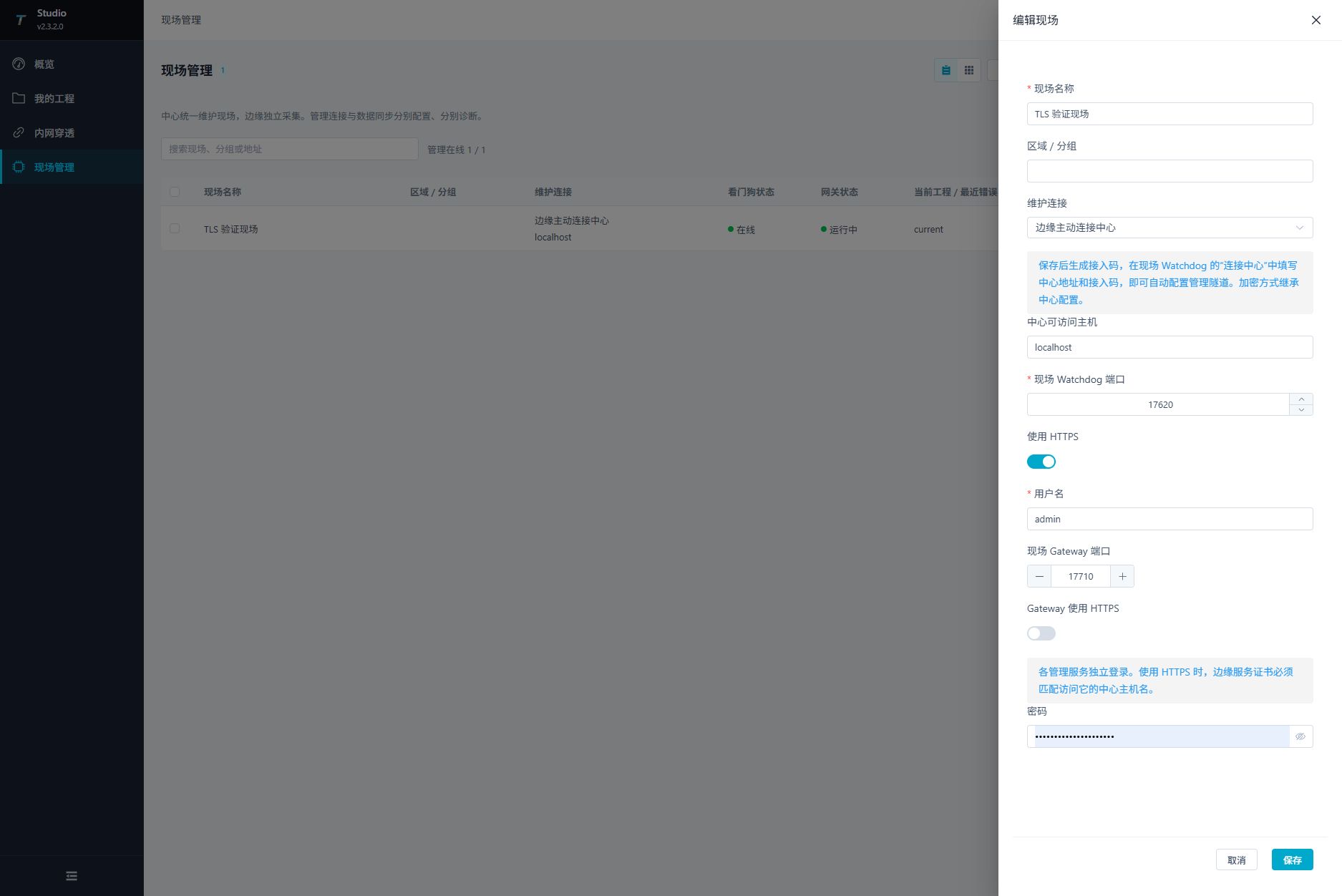
| Configuration Items | Description |
|---|---|
| Service Name | The name displayed in Studio is recommended to include site or production line information. |
| Service Address | the IP or domain name of the Watchdog service, with the port entered in the "Service Port" section. Regular HTTP IPs are officially supported, for example, entering 192.168.1.20. |
| Service Port | The port used by Studio to access Watchdog Web/API, range 1-65535. Bundled Watchdog commonly used 6200; If the Watchdog port has been modified on site, fill in the actual port. Enter the Watchdog port here, do not enter the TGateway Web/API port, and do not repeatedly enter the port in the service address. |
| Username | Watchdog login account. |
| Password | Watchdog login password. |
| Save | Add or update connection configurations. |
| Cancel | Close the drawer without saving. |
After saving, it is recommended to click "Test" immediately. A successful test only means Studio can access Watchdog; Whether the target TGateway can run properly depends on the gateway status and Watchdog logs.
Studio automatically retrieves Watchdog's one-time RSA-OAEP-SHA256 public key challenge, encrypts the saved password, and exchanges it for a Bearer session. Connection testing, status polling, upload/download, and backup management all use Bearer, without the need to configure Basic authentication. If the Watchdog restart causes the session to expire early, Studio will log in again and try again.
Connection Test
| Test Results | Explanation |
|---|---|
| Success | Studio has connected to Watchdog and read version and other status information. |
| Failures | Issues with address, port, network, account password, or Watchdog service status. |
Check in order when tests fail:
- Can the browser or server access
http://<watchdog-address>:<port>? - Can Watchdog Web log in with the same account and password?
- Whether the firewall allows Watchdog ports.
- Whether the Watchdog service is activated.
- If accessed through the tunnel, confirm that both Studio Broker and Watchdog Client have been successfully bound.
Backup Management
Click "Backup" in the Watchdog card or list operation to open the backup drawer.
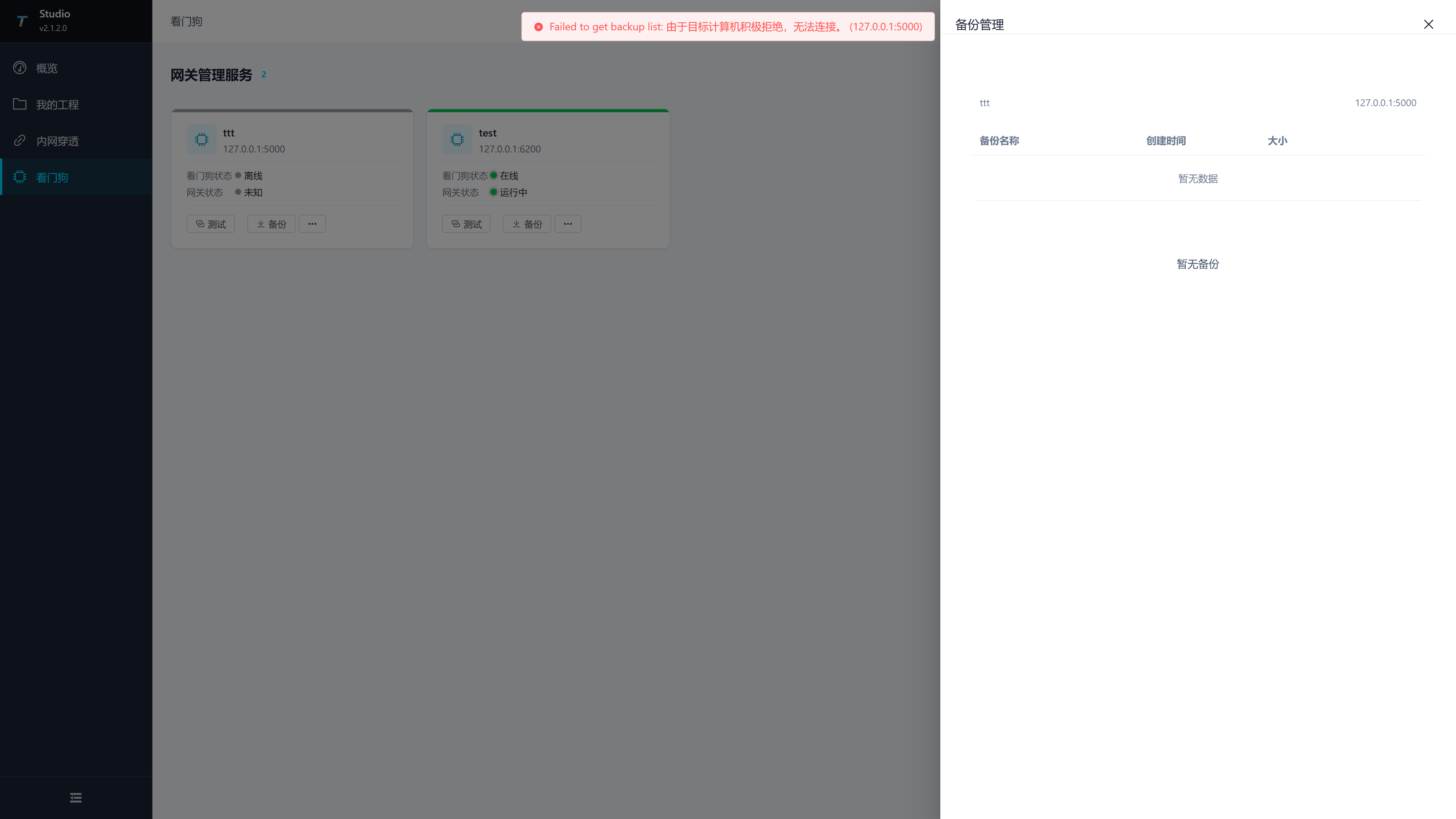
| Columns or Operation | Instructions |
|---|---|
| Name | Name of the backup file on the target Watchdog. |
| Creation time | Back up creation time. |
| Size | Backup Size. |
| Restore | restore the backup to the target Watchdog current project. |
| Delete | Delete the backup on the target Watchdog. |
Performing backup recovery from Studio produces the same effect as recovery in Watchdog Web, both changing the target gateway project content. Before resuming, please confirm that the target project has a rollback version.
Linking with Project Upload
When uploading a project on the "My Projects" page, the target gateway list comes from the Watchdog service saved on this page.
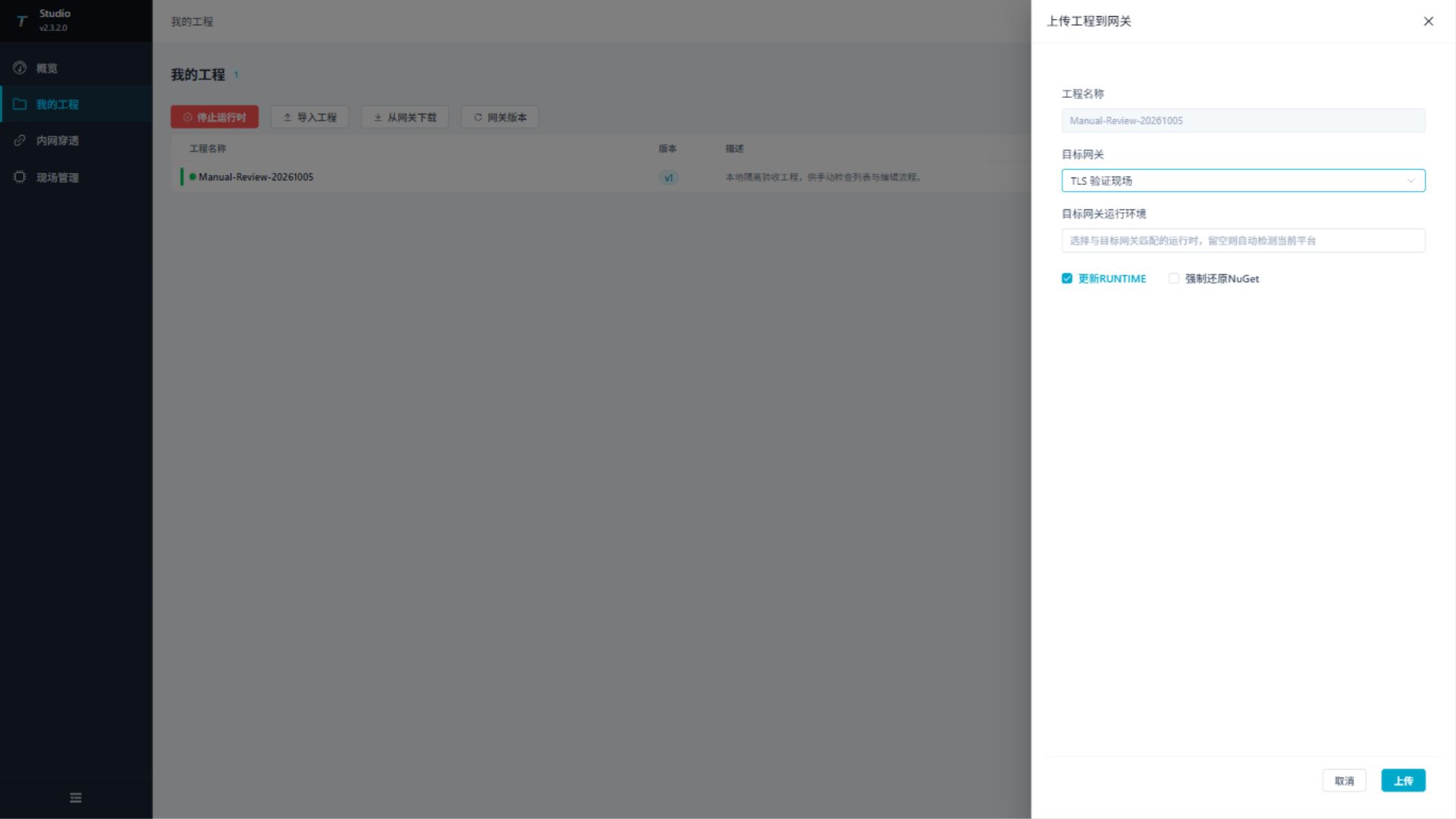
| Upload fields | Relationship with Watchdog |
|---|---|
| Target gateway | A site saved in Site management. |
| Target Gateway runtime | Enter a runtime identifier matching the target OS and CPU, such as win-x64, linux-x64 or linux-arm64. |
| Update RUNTIME | will update the target TGateway program file. |
| Forced restoration of NuGet | Restoring dependencies upon release; Depend on exceptions or switch target environments before use. |
Pre-release recommendations:
- In Site management, click Test to confirm Watchdog is online.
- Open the backup drawer or Watchdog Web to create a backup for the target project.
- After uploading, check the results on the dashboard and logs of Watchdog Web.
Integration with Project Download
When clicking "Download from Gateway" on the "My Project" page, the source gateway also comes from the Watchdog service saved on this page.
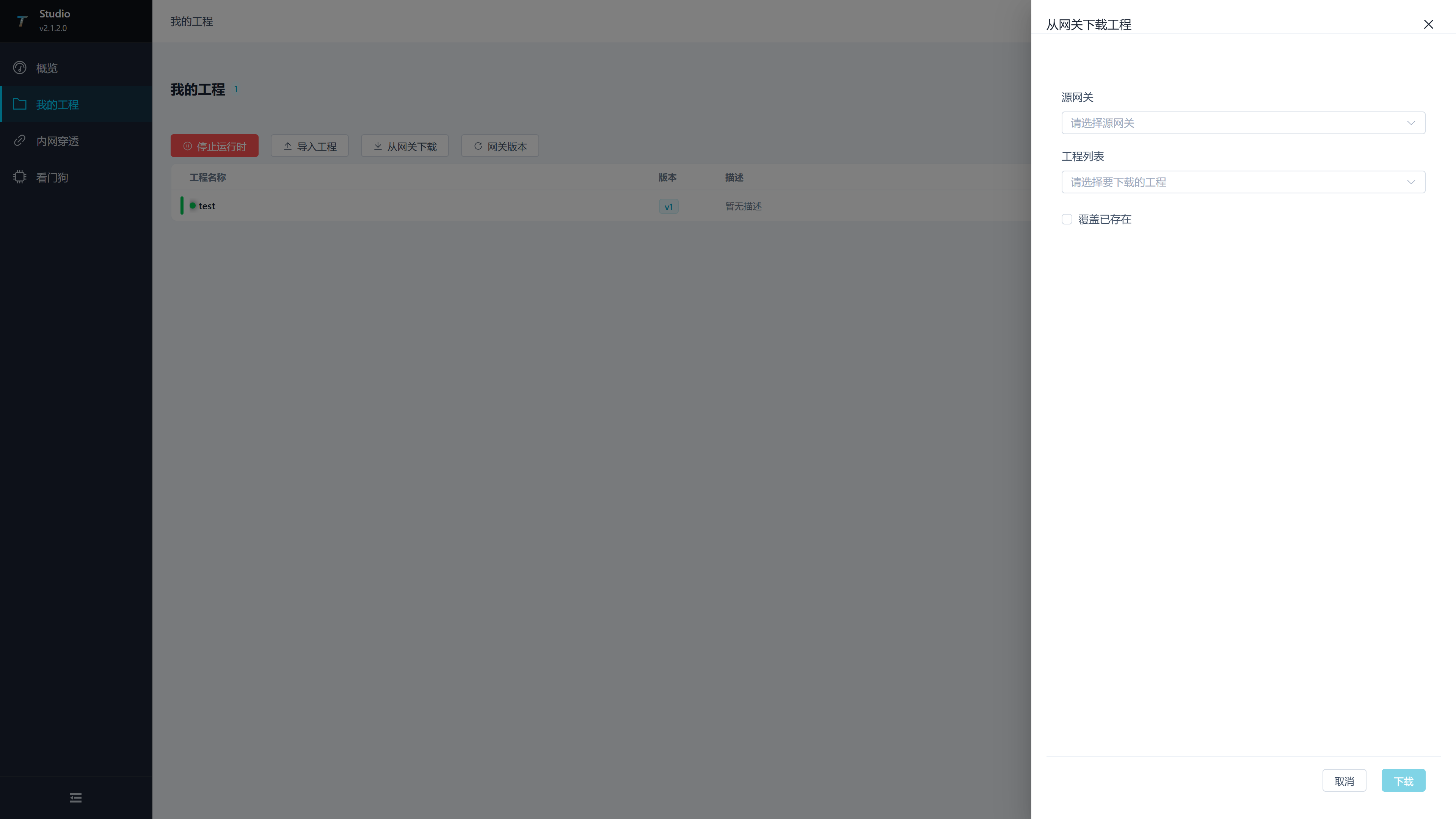
| Download field | Description |
|---|---|
| After the source gateway | selects the Watchdog service, Studio reads the list of items on that Watchdog. |
| Project List | Select the project you want to download back to Studio. |
| Override existing projects | Whether to overwrite if there is a project with the same name locally. |
Downloading is suitable for field configuration retrieval, fault reproduction, and version comparison. After downloading, verify the project configuration and confirm that the project name did not overwrite the wrong local project.
Division of Labor with Watchdog Web
| Tasks | Recommended Entry |
|---|---|
| Saving Multiple Watchdog Connections | Studio Web > Watchdog |
| Upload Studio Projects | Studio Web > My Projects |
| Download Live Projects to Studio | Studio Web > My Projects |
| Observe Target Run Logs | Watchdog Web > Logs View |
| Create Current Project Backup | Watchdog Web > Backup Management or Studio Watch Dog Backup Drawer |
| Modify Watchdog Running Parameters | Watchdog Web > Settings |
| Configure Watchdog Tunnel Client | Watchdog Web > Tunnel Management |
Frequently Asked Questions
| Phenomena | Handling Suggestions |
|---|---|
| Test failure after adding a service | Check whether the service address is falsely labeled as port, whether the port is filled correctly, and whether the username and password are correct. |
| HTTP IP addresses cannot be saved or accessed | current version allows HTTP IPs. Check whether Watchdog is listening to 0.0.0.0:6200 and enable remote management, standard HTTP permissions, and firewall ports. |
| Connection test returns 401 | Check Watchdog account and password; After Watchdog reboots, Studio logs in again, and a persistent 401 usually means credentials are invalid. |
| Connection test returns 403 | Check Watchdog RemoteManagementEnabled; Upload, recovery, and process control also require RemoteDeploymentEnabled. |
| Watchdog is online but the gateway stops | open the Watchdog web dashboard to view the last errors and logs. |
| Backup drawer is empty | The target Watchdog has no backup, or the backup list failed to read; You can check again on Watchdog Web. |
| Upload target list is empty | Add and save a site in Site management first. |
| Gateway abnormality after restoring backup | Check Watchdog logs, and restore to the previous backup or re-upload the project if necessary. |